
Whether you’re out on a hike or visiting a local park, sometimes you come across a spot and think, “That would be a great place for a cache.”
With the latest Geocaching® app release (version 10.7.0+), you can now record a hiding spot, add cache details, and submit a Traditional Cache for review—all from the mobile app!
Earlier this year we introduced the coordinate collector to help players capture accurate coordinates in the field. Now we’re taking the next step toward a more mobile-friendly hiding experience by bringing key parts of the Traditional Cache hiding process into the Geocaching® app.
Get started from the Hides tab
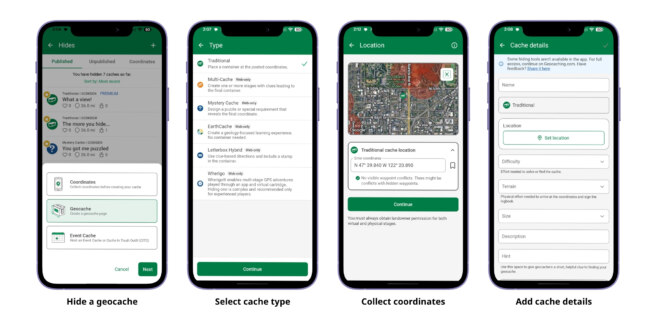
To begin, open the Hides tab in the app and tap the + in the upper right corner. Select ‘Geocache,’ then Traditional Cache.
Currently, Traditional is the only cache type that can be created, edited, and submitted from the app. Selecting another cache type will open a mobile web browser so you can continue creating the listing on Geocaching.com.
From the app, you can now:
- Name your geocache
- On the Location screen, enter coordinates or tap the bookmark icon to collect coordinates or choose saved coordinates
- Set difficulty and terrain ratings, and size
- Add cache details like the description and hint
- Add attributes to help future finders know what to expect
- Add and describe a helpful image (e.g. location or spoiler)
- Make sure your cache container is placed and ready to be found
- Submit your cache for review by a community volunteer reviewer
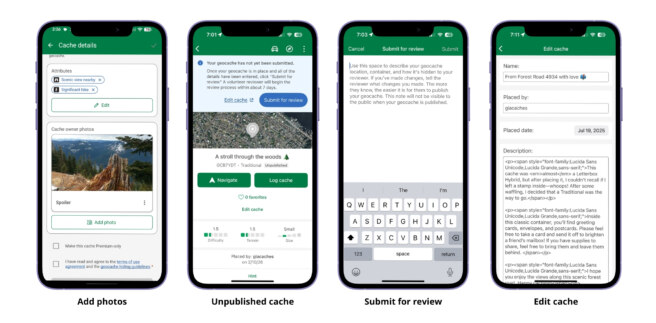
If you still need to place the container or want more time to add details, you can save the listing and finish it later. Edit your Traditional Cache in the app (Hides tab > Unpublished) or from your cache owner dashboard on Geocaching.com.
Ready to hide? Visit Shop Geocaching to browse cache containers in a variety of sizes, colors, and shapes.
NOTE: Creating a cache listing does not reserve or guarantee a location for your cache. To learn more about hiding guidelines, visit the Help Center.